
How to use the map drawing tools
Moving around the map

Use the zoom buttons (+ and -) buttonsin the top left corner to zoom in and out of the map.
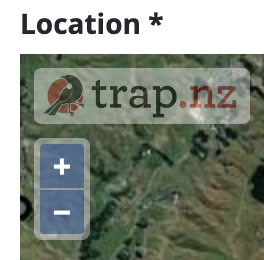
Understanding the toolbar
There is a toolbar at the bottom of the map. You can see the name of each tool by hovering the mouse over the icon.
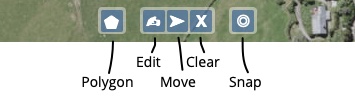
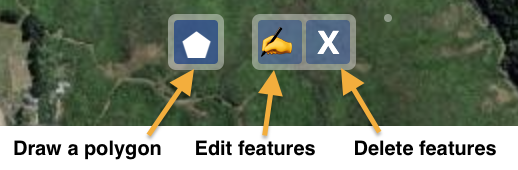
The leftmost"Draw polygona polygon" tool will change depending on what you are doing on the map.
Drawing a shape on the map
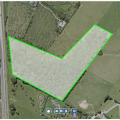
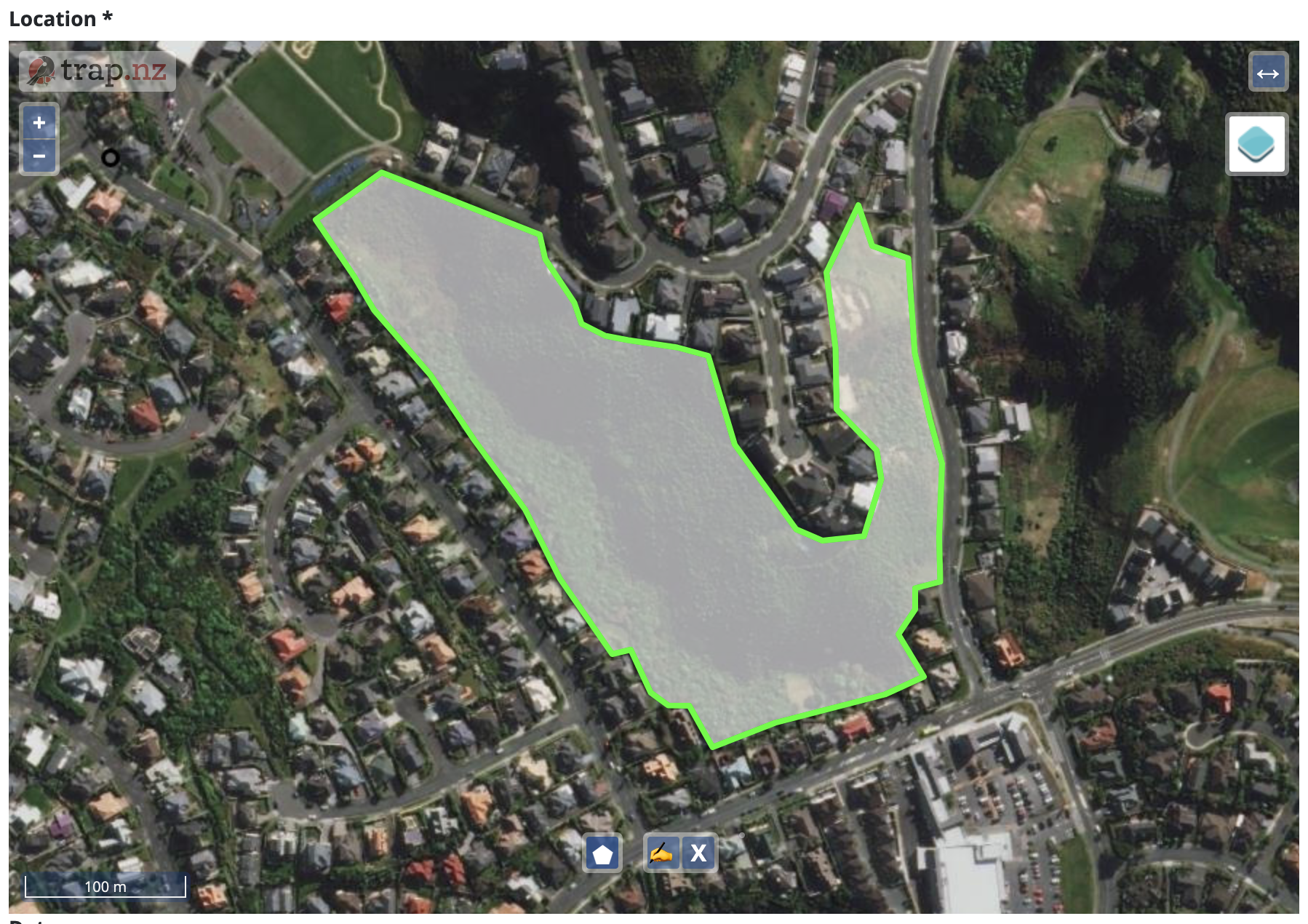
Editing the shape
If you didn't get the shape quite right you you can change it: 
- Click on the "Edit features" tool
- Now click inside the shape you drew and the outline will turn blue
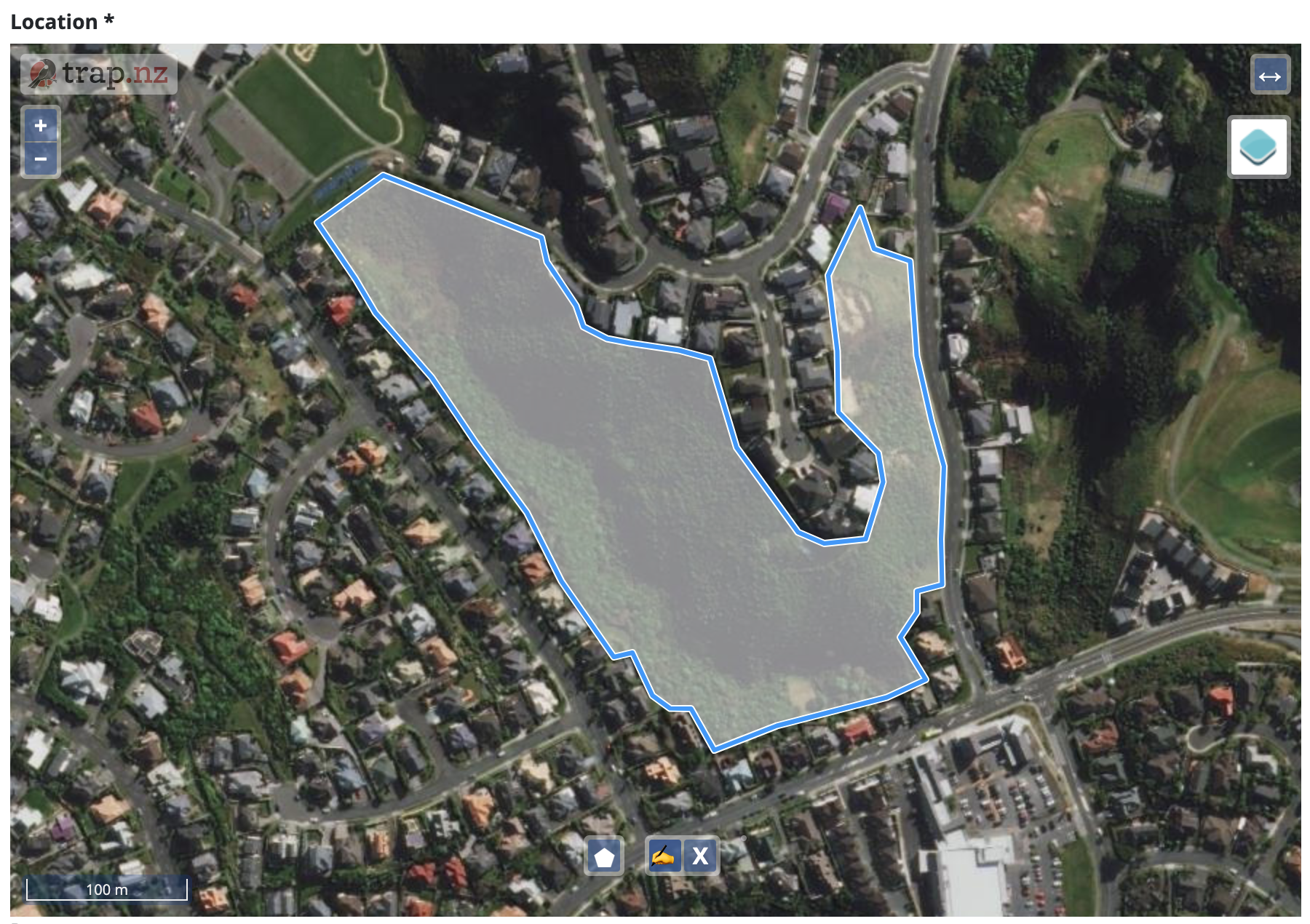
- Hover the mouse over the edge of your shape and a small black circle will appear
- By clicking and dragging on the black circle you can adjust the boundary of the project
- When you are done adjusting, click the "Edit features" tool again and the outline will return to green
Moving the shape on the map
If you drew the correct shape but put it in the wrong place you can drag it to a new location on the map.
Starting over
If your drawing has gone wrong and you'd like to start over, you can do this at any time by clicking the "Clear features" tool.